

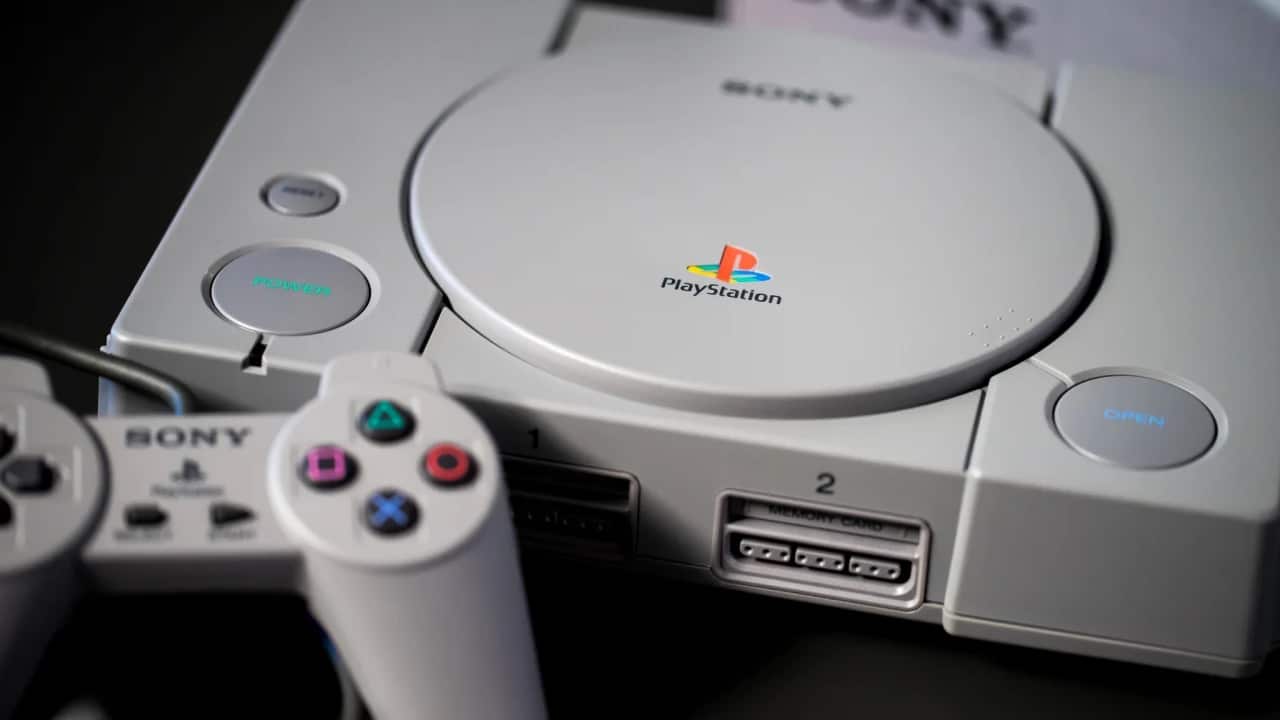
If you’ve been making gaming content for a while, you’re probably sitting on a pile of old footage. Maybe it’s PS2 Let’s Plays recorded on a cheap USB capture card, a speedrun VOD from years ago, or some retro gameplay footage of a series your audience still brings up in the comments. The content is fine. The quality is the problem.
Footage captured at 480i or early 720p looks rough on a modern 4K monitor or a big living-room TV. Dark scenes turn into blocky mush, compression chews up HUD text and character faces, and any leftover capture-software watermark, old channel logo or burned-in subtitle makes the clip look like it was uploaded in 2012.
You could replay and re-record everything, but that’s hours of grinding for runs you’ve already finished, and some of those save files are long gone. The smarter move is to rebuild the footage you already have. Vmake Labs, for example, is an AI social video studio built to clean up, upscale and re-optimise existing videos so they hold up on today’s screens, so it’s one of the easiest ways to do it alongside other options on the market.
Stage 1: Clean Up the Footage First
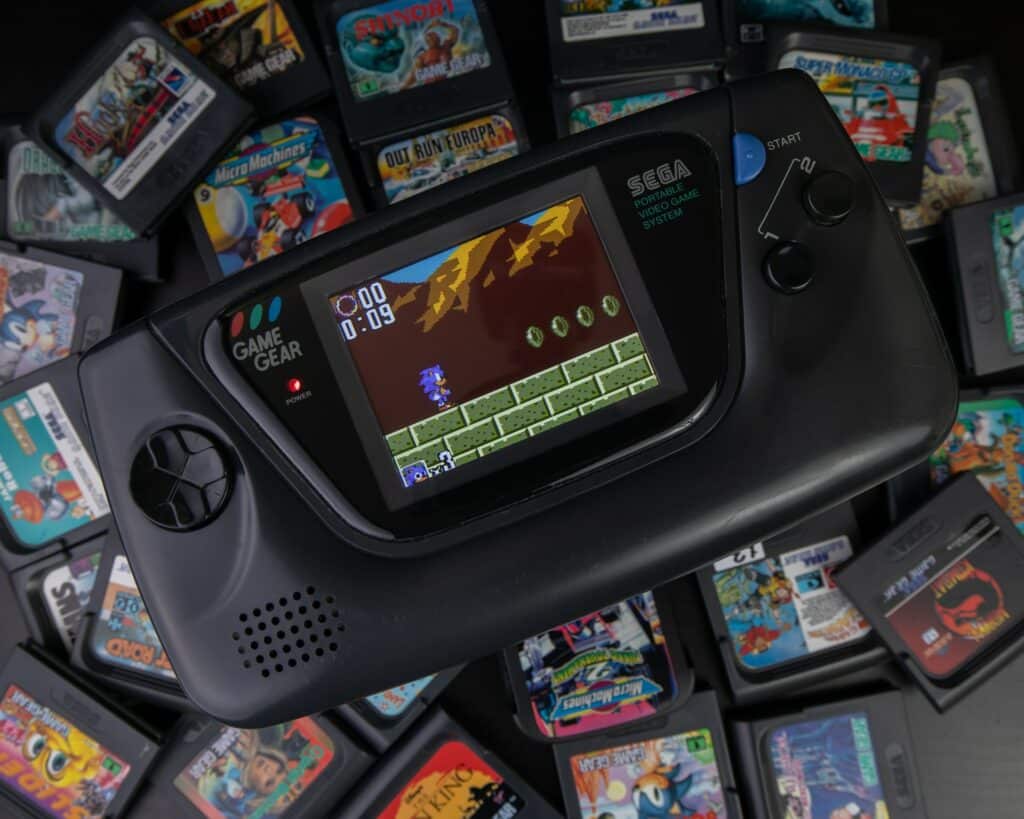
Before you touch resolution, deal with what’s actually sitting on the retro gameplay footage. Old captures come with baggage: a capture-card or recording-software watermark in the corner, an outdated channel logo or social handle, an FPS counter, hardcoded subtitles from a fan-translated upload, or a sponsor banner left over from a stream.
Painting these out frame by frame used to be the only option, and the clumsy blur patches always gave it away. Automated watermark and subtitle removal handles this far better now without wrecking the footage underneath. The harder cases are overlays that move, semi-transparent logos, and captions sitting over busy backgrounds, which is basically every boss fight with explosions going off. Vmake Labs Video Watermark Remover’s Smart Pro mode is built for that second category.
Get this stage right and everything after it gets easier. Upscale a clip that still carries garbled patches from a bad removal job, and you’ll only make those patches bigger. Here’s what it looks like before and after the edit.
Stage 2: Upscale and Rebuild Lost Detail

Once the clip is clean, it’s time to deal with resolution. PS1 games often ran at around 320×240, and PS2 games at roughly 640×480, both a long way from what a 4K display expects. Plain upscaling disappoints here. You get blurry edges, smeared textures, unreadable on-screen text, and grain that looks like digital static instead of the crunchy charm you remember. On a 27-inch monitor or a 65-inch TV, every one of those flaws is obvious.
A good video quality enhancer does more than stretch pixels. It reconstructs detail the original compression never fully captured, sharpens fine detail like HUD elements and weapon models, and handles skin and textures without tipping into a plastic, over-processed look. Three scene-specific presets are worth knowing:
- Studio Mode brings back cinematic richness and natural contrast. It’s a good fit for games with strong art direction, like moody horror or cinematic action, where old compression drained the punch out of the footage.
- Portrait Pro Mode is built specifically for faces. It sharpens features and rebuilds skin texture without the “AI smoothing” look that makes people look fake, which is handy for cutscene close-ups and old facecam footage.
- Master Mode (2K/4K/8K) is the option for genuinely high-resolution output. If you want your upload to look sharp at 4K, this is where there’s nowhere for a soft image to hide.
Which one you pick depends on what the footage needs most. A moody, atmospheric playthrough benefits from Studio Mode’s contrast work, while a story-heavy series full of character close-ups is a clearer case for Portrait Pro.
Stage 3: Reformat For Modern Screens
Restoration fixes the quality problem. Format is a separate one. Most old PS1 and PS2 captures were recorded in 4:3, and dropping one into a 16:9 YouTube upload leaves you with black bars down both sides. That leaves two options: crop to 16:9, which can slice off health bars, minimaps and other HUD elements sitting at the edges of the frame, or rebuild the framing so the action sits where a widescreen viewer expects it. If you’re also cutting 9:16 versions for Shorts or TikTok, that recomposition is a third pass, not a free export.
This is also the point to fix colour and lighting problems baked into the original capture, like the washed-out look and crushed blacks cheap capture cards are known for, noisy dark sections, and flat grading. None of this changes the gameplay. It just makes sure your retro gameplay footage looks the way you remember it on the screens people actually watch on now.
And if you’re recording fresh PS2 footage rather than rescuing old clips, running the game through an emulator at a higher internal resolution is another option. Our PCSX2 setup guide covers the basics.
Conclusion
None of this is about nostalgia for its own sake. It’s about getting more out of the work you’ve already done. A let’s play or retro series your audience already loves is worth far more restored than sitting untouched on an old hard drive, and a restoration pass takes a fraction of the time it would take to re-record everything from scratch.